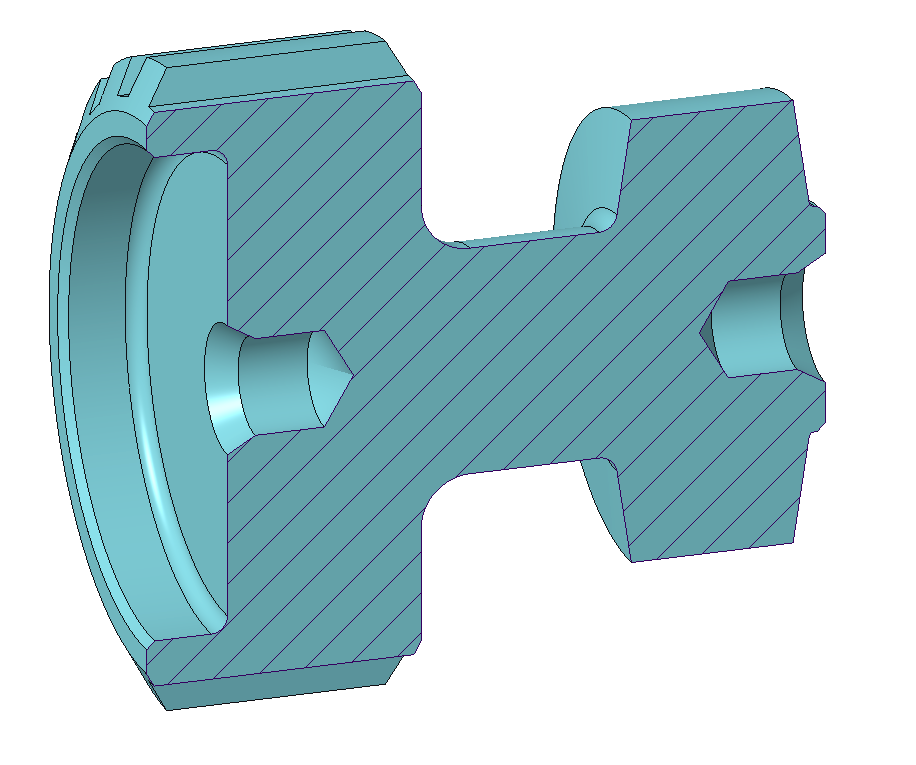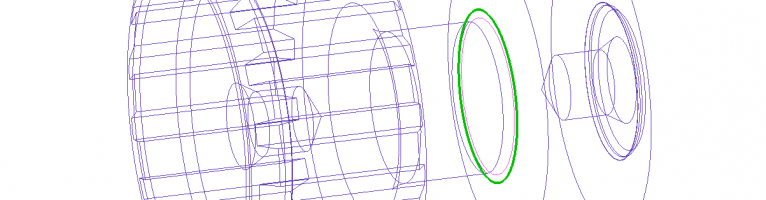
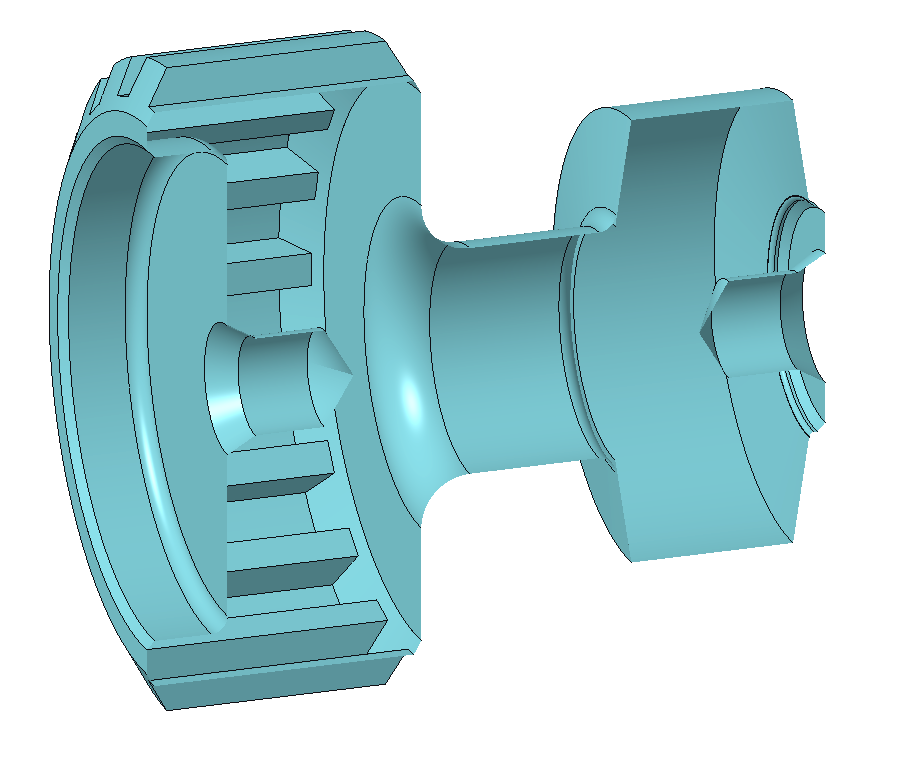
Problem: A model created in another CAD system (or downloaded from the Internet) falls apart into surfaces and cannot be converted to a solid body model.
Solution: Repairing the dislocated surfaces is possible by editing the imported geometry and then after the surfaces are closed, it is possible to convert it to a solid body model.
Theoretical background: In order to transform a group of surfaces into a body model, the surfaces must be closed, and a given space should be clearly assigned (which will then be considered the volume of the body model) by them. If the surfaces are not closed, the intersections of surface stains will not be perfect, and one-sided edges will be formed at the poorly connected parts. It is possible to find mismatched surface stains by searching these edges.
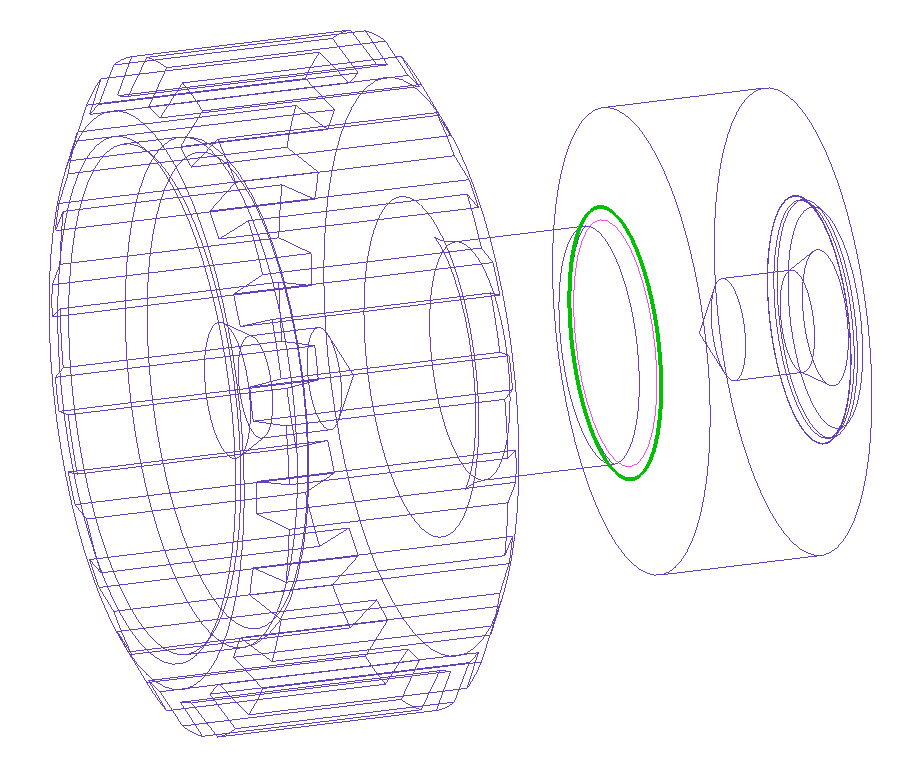
In many cases, the geometry falls apart into several parts if the connection of the surfaces is poor. Due to the unconnected surface groups, the enveloping surface of the geometry will not be closed, and thus the solid model cannot be created.
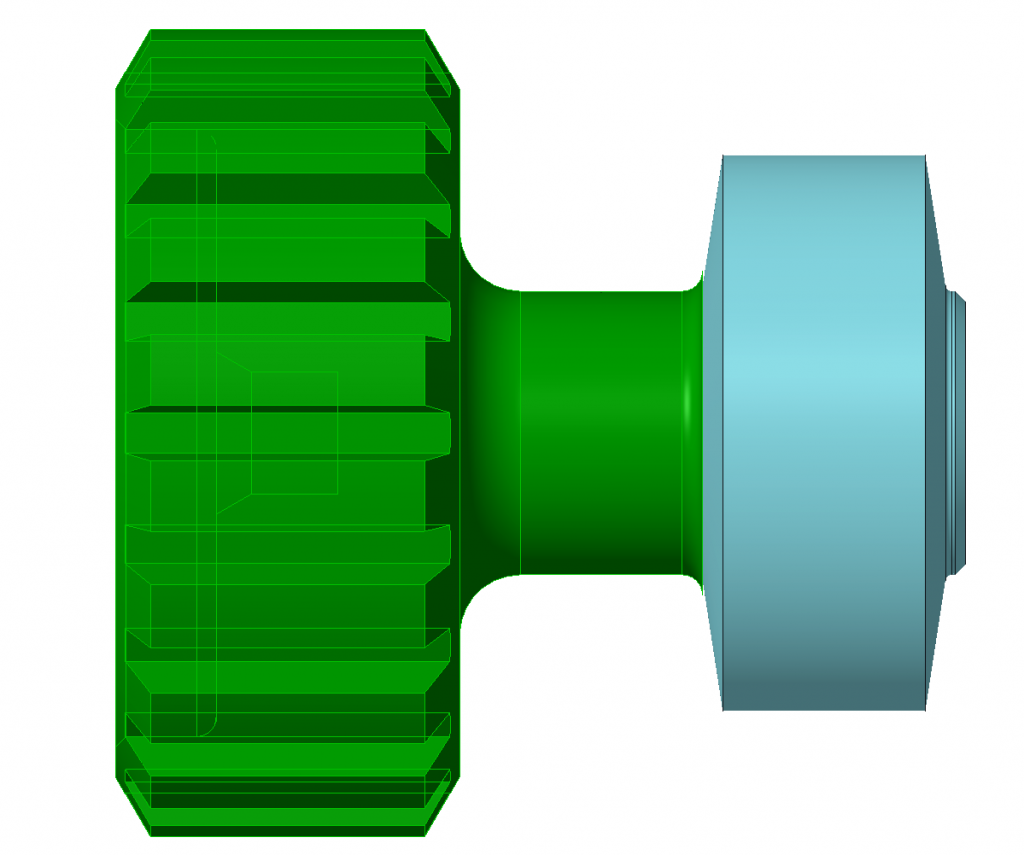
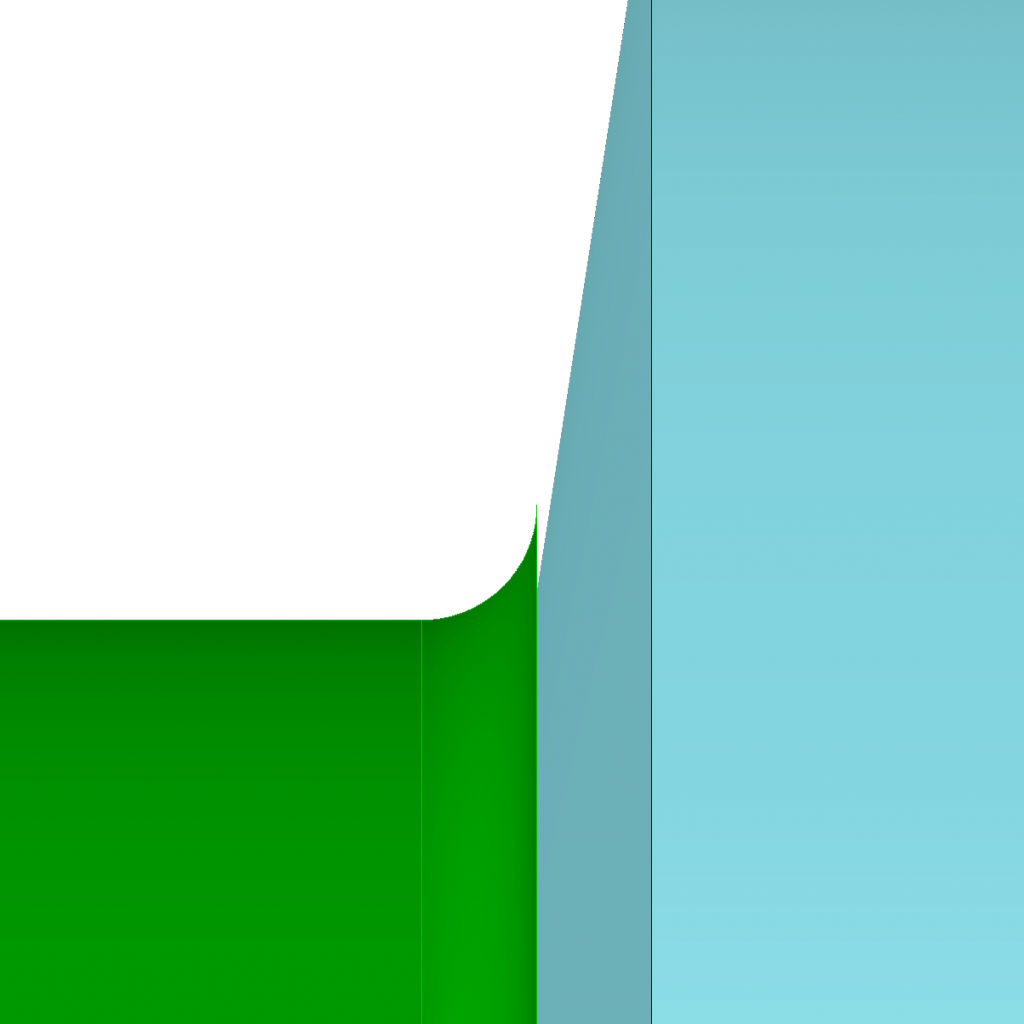
The defective surface (in this case, a poorly connected rounding) must be deleted from the imported surfaces.
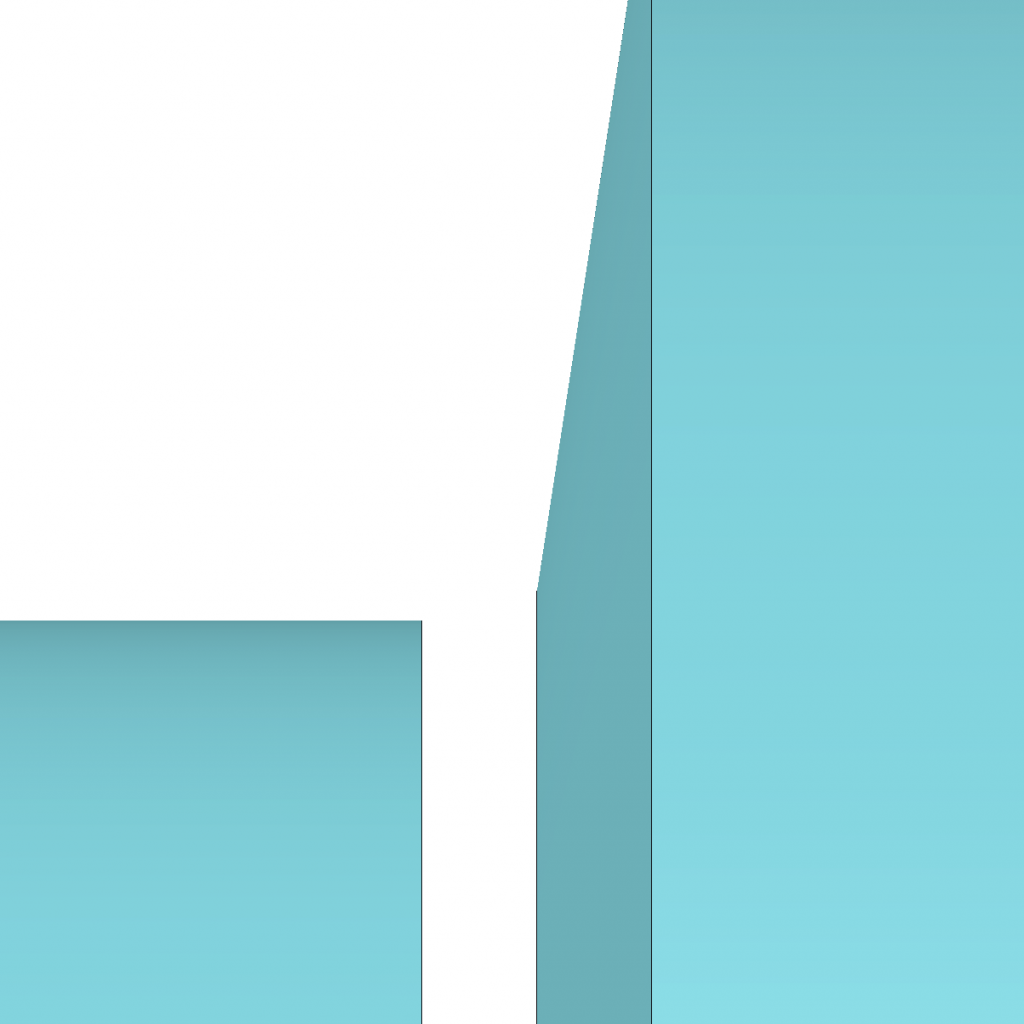
The erased surface can be replaced with a geometrically well connected, new rotating surface. The two surfaces can now be merged into a closed surface.
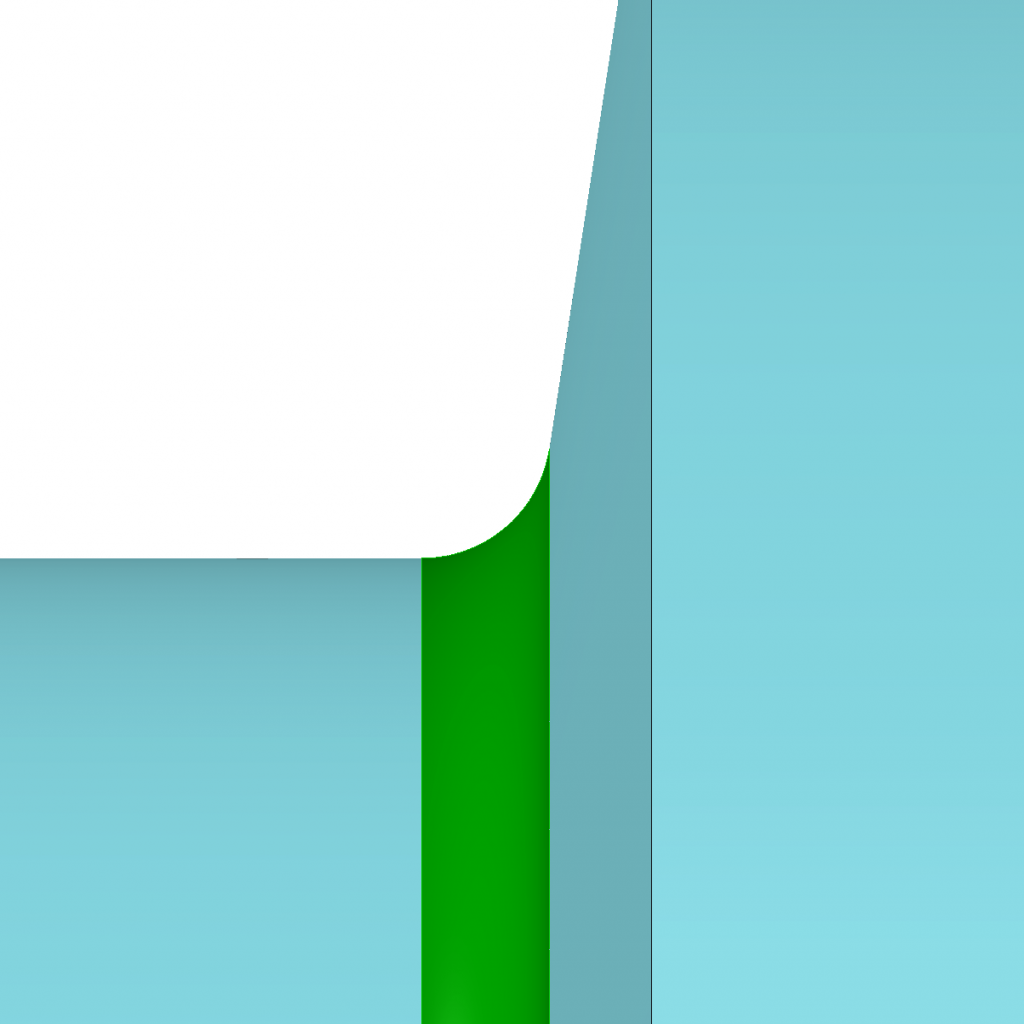
Finally, a solid body model can be formed after the surfaces were connected precisely everywhere. A technically correct, detailed drawings can be created only from models repaired in this way.